Blank Business Card Template (Printable)
A blank business card template gives you a ready layout with placeholder text that you replace with your own details, then print at home or at a shop. Every template here is free.
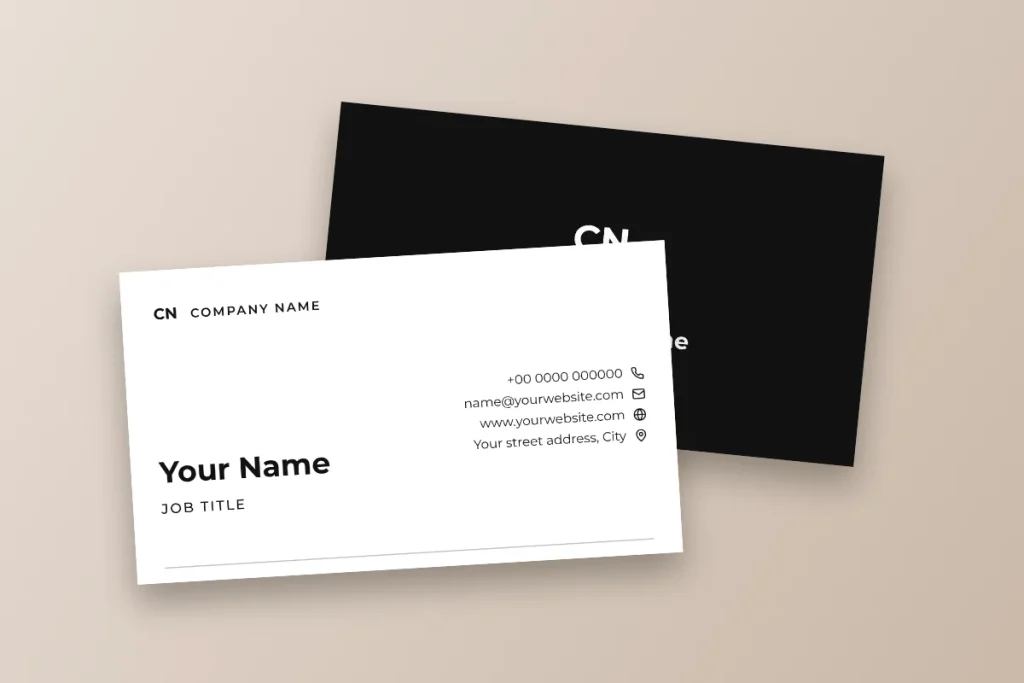
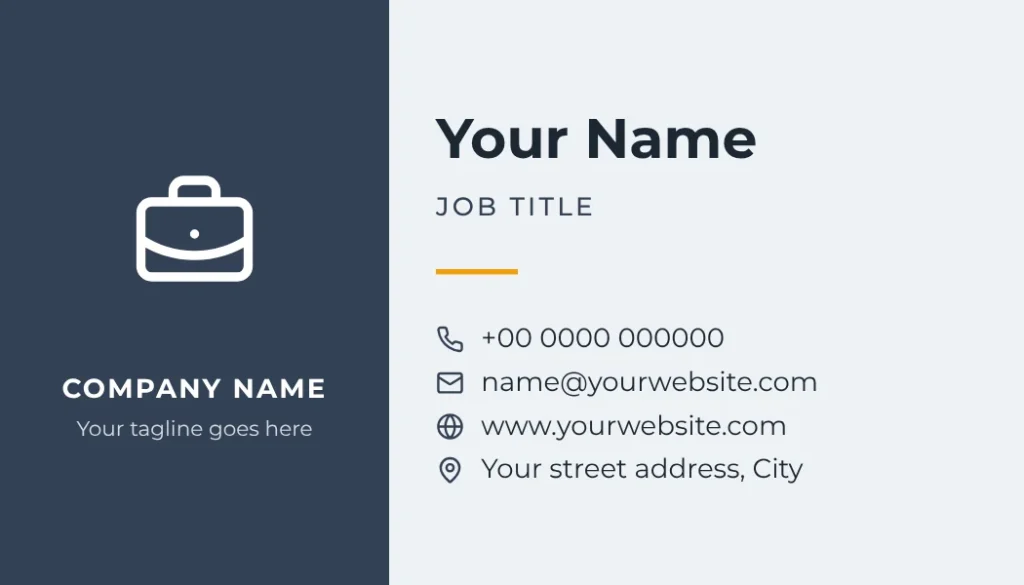
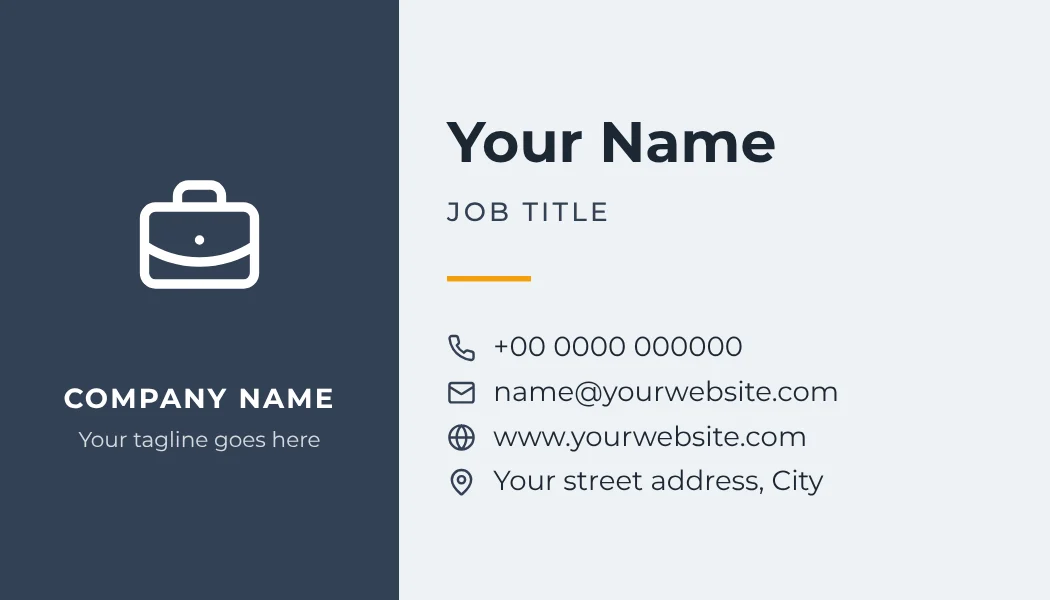
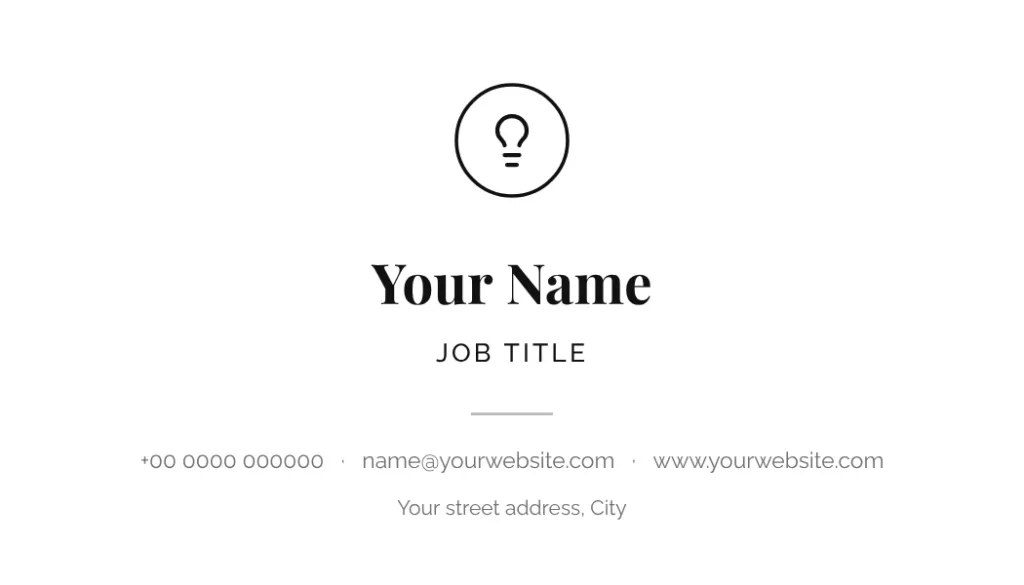
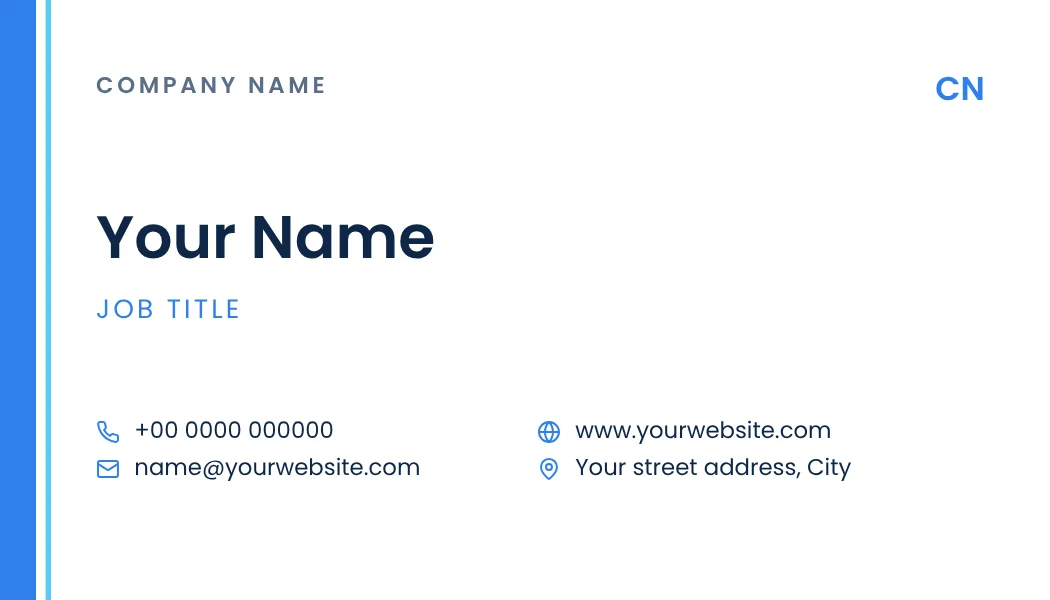
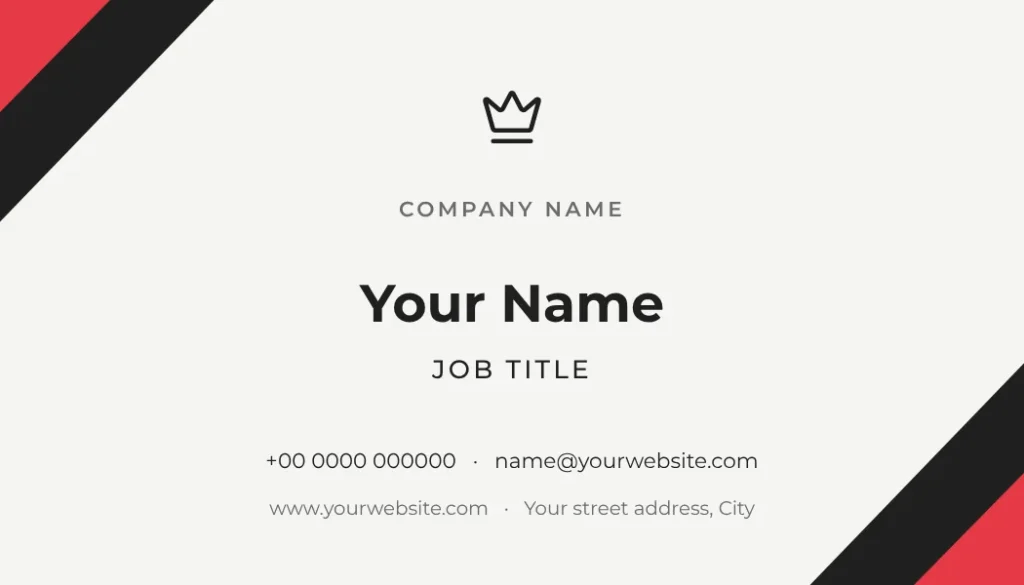
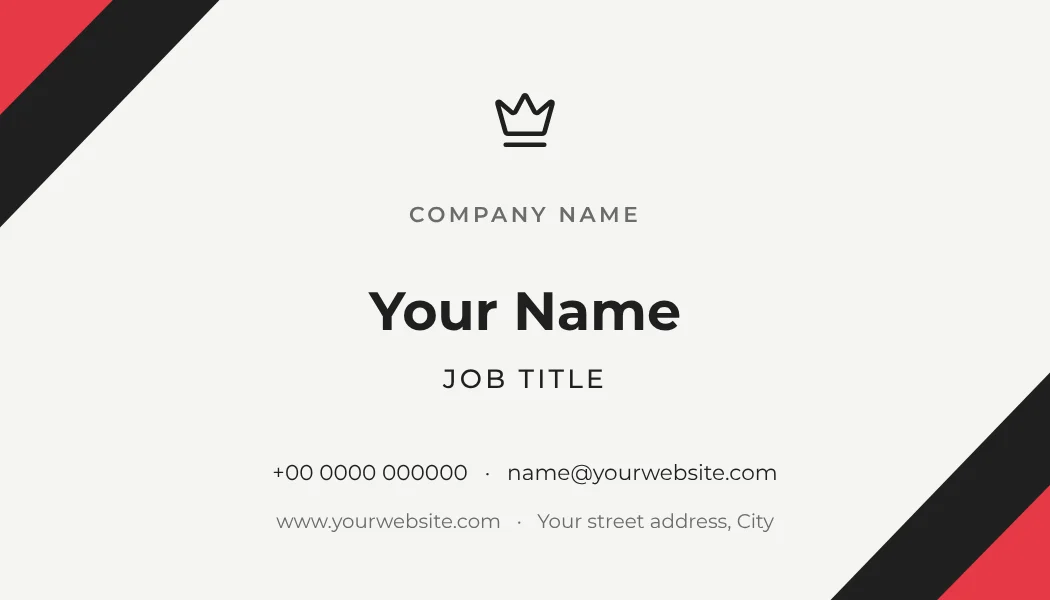
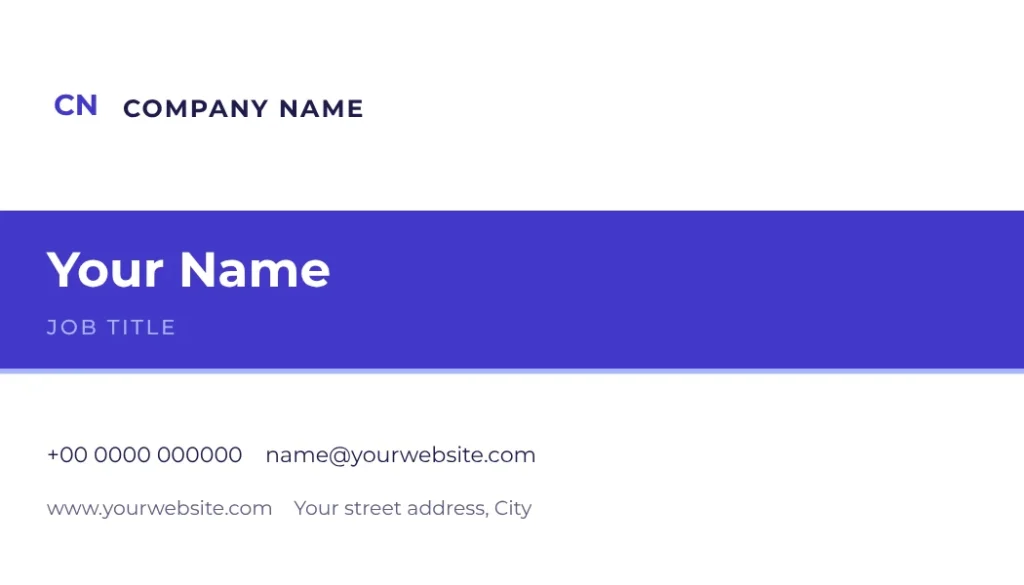
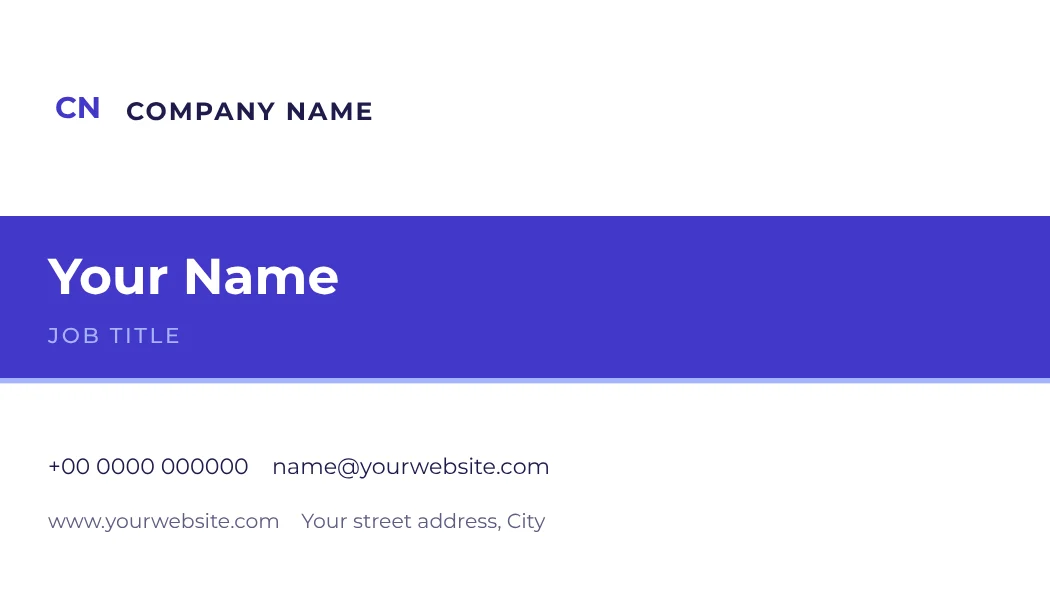
A blank business card template is a pre-designed card with placeholder text (such as "Your Name" and "000 000 0000") that you fill in before printing. The 12 templates below each have a front and a back. Open one in the free maker, type your details, then download a single card as PNG, a print-ready PDF with 0.125 in bleed, or a 10-up print sheet: US Letter in the Avery 5371 layout, or A4 with crop marks.
Prefer working offline? A free 10-up Word (.docx) template is also offered for Letter and A4, so you can type straight into a blank visiting card grid and print.
12 free blank business card template templates
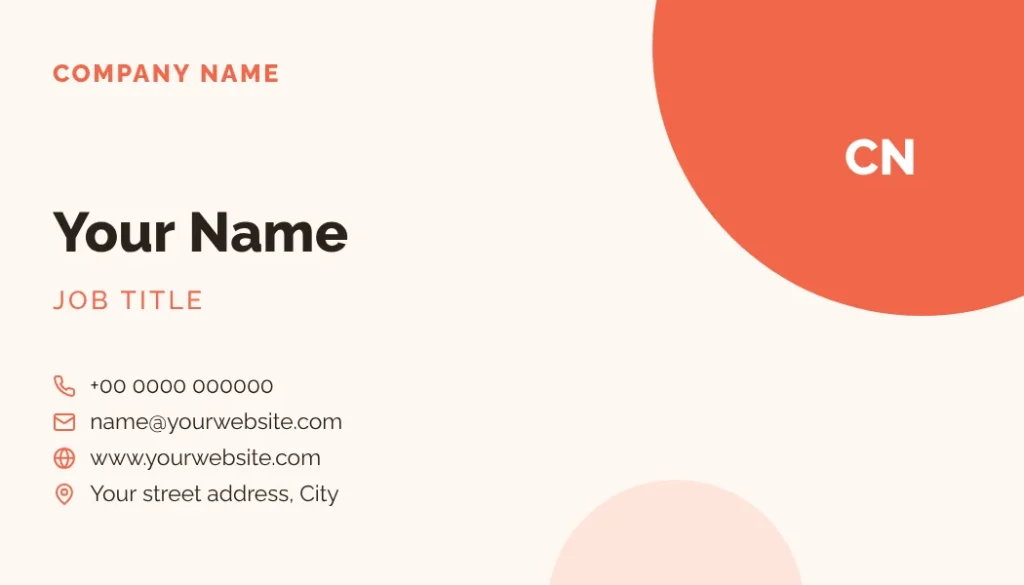
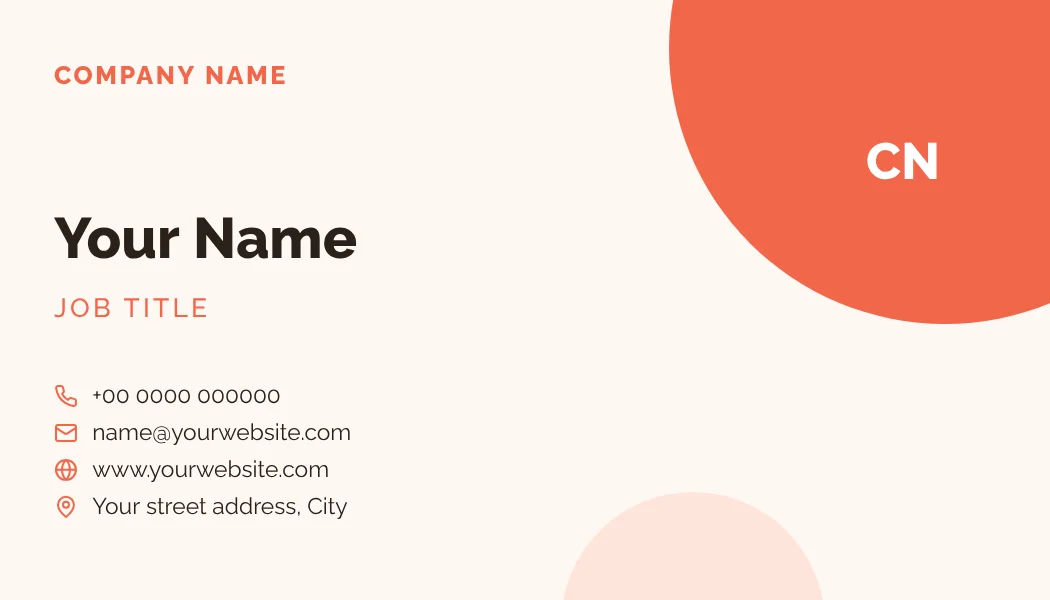
Hover or tap a card to see the back. Customize to edit and download.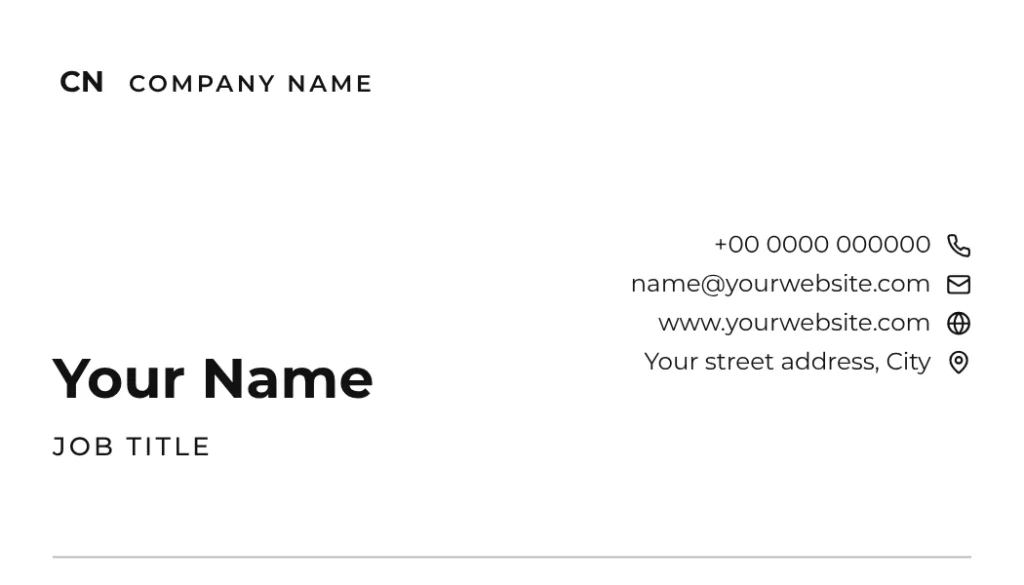
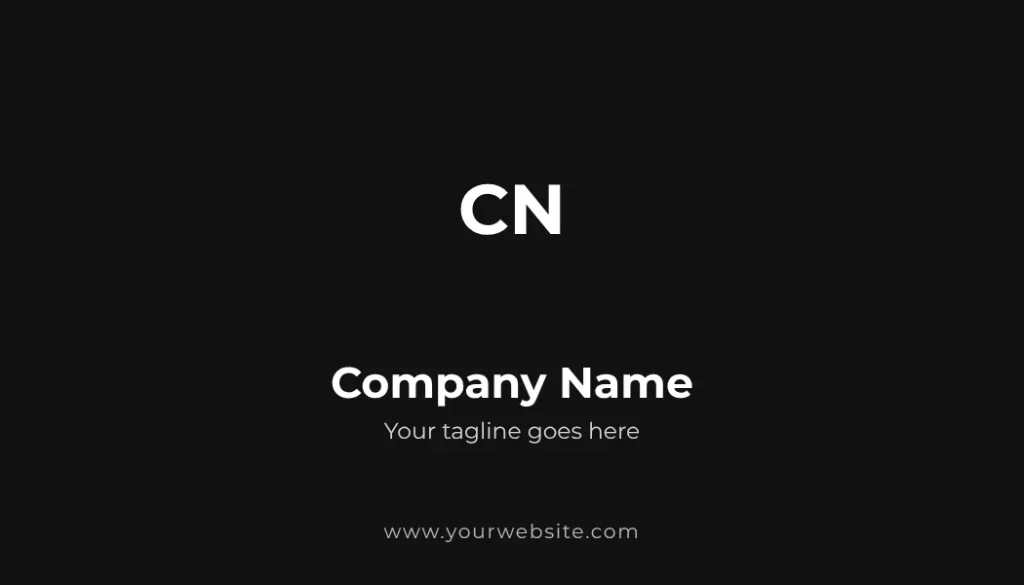
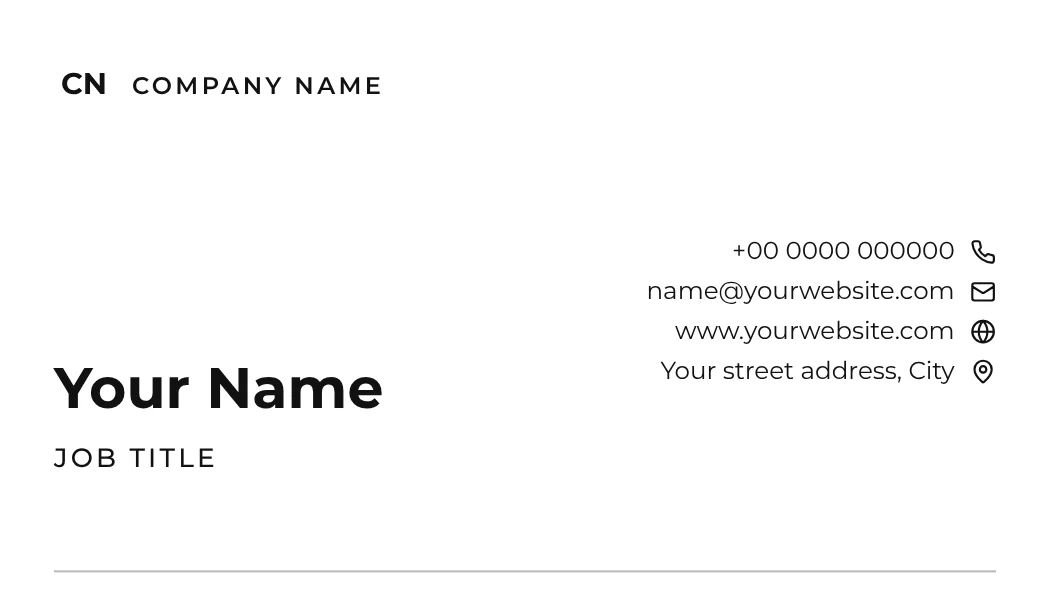










Three ways to use a printable business card template
| Option | Best for | What you get |
|---|---|---|
| Edit in the maker, download PDF | Sending to a print shop | One card, front and back, with 0.125 in bleed |
| Edit in the maker, download 10-up sheet | Printing at home or the office | US Letter (Avery 5371 layout) or A4 with crop marks |
| Download the Word .docx | Typing details offline in Word | A blank 10-up grid for Letter or A4 |
The maker gives the most control over fonts, colours and logos. The Word file is useful if you already work in Word or need to edit on a computer without internet. Our guide to the business card template for Word walks through it step by step.
About the 10-up print sheets
US Letter (Avery 5371 layout): ten 2 x 3.5 in cards on an 8.5 x 11 in sheet, two across and five down, with a 0.5 in top margin, 0.75 in side margins and no gaps between cards. Avery lists many products as using the same template, including 8371, 8871, 8870, 5871, 5911, 28371, 27871, 8471, 8376 and 8377. Avery 8859 (Clean Edge) and Avery 8869 (8 per sheet) use different layouts, so check the number on your pack. See the Avery business card template guide for details.
A4 with crop marks: ten cards on an A4 page with marks that show where to cut. Use this for plain A4 card stock and a paper trimmer. If you buy pre-cut A4 card sheets, layouts differ by product, so use that product's own template.
Avery is a trademark of its owner; this site is not affiliated with Avery.
How to print blank visiting cards at home
- Fill in your details in the maker and download the 10-up sheet that matches your paper.
- Print one copy on plain paper first.
- Set the print scale to actual size (no "fit to page"), otherwise the cards will not line up.
- Hold the test page against your card sheet, or measure the cards, to check alignment.
- Choose your printer's heavy paper or cardstock setting and best quality, then print on card.
- For double-sided cards, print the fronts, turn the sheet over as your printer requires, and print the backs. Test the flip on plain paper first.
- Separate perforated cards, or cut along the crop marks with a trimmer.
Check your printer's maximum paper weight before buying thick card. More tips are in how to print business cards at home.
Filling in a blank template well
- Replace every placeholder. Search the card for sample numbers and "Your Name" before printing.
- Keep the essentials: name, title or service, phone, email, website. See what to put on a business card for a full checklist.
- Add registration numbers where your profession expects them, such as a GSTIN (15 characters) for a business in India.
- Stay inside the safe zone, 0.125 in inside the trim on a 3.5 x 2 in card.
- Keep text at 8 pt or larger, as MOO recommends, so it stays readable once printed.
Mistakes to avoid
- Printing with "fit to page" turned on, which shrinks the grid and misaligns every card.
- Using a sheet with a different product layout from the template you downloaded.
- Skipping the plain-paper test, especially for double-sided printing.
- Placing important text near the edge, where home cutting is least accurate.
- Using a low-resolution logo; export or upload images at 300 DPI for the printed size.
Frequently asked questions
Where can I get a free blank business card template?
Every template on this page is free. Open one in the maker, replace the placeholder text and download a PNG, a print-ready PDF with 0.125 in bleed, or a 10-up print sheet for Letter or A4. A free Word .docx template with a blank 10-up grid is also available for Letter and A4.
How many business cards fit on one sheet?
Ten cards of 2 x 3.5 in fit on US Letter in the Avery 5371 layout, two across and five down. On A4, ten per sheet is typical, but layouts differ by product, so use the template for your exact sheet. Avery 8869 is different and fits eight print-to-the-edge cards.
Can I use the blank template in Microsoft Word?
Yes. Download the free 10-up .docx file for Letter or A4 and type your details into each card. In Word you can also create a grid yourself under Mailings, Labels, Options by choosing Avery 5371 or 8371. Print at actual size with no scaling so the cards line up.
What paper should I use for printable business cards?
Use pre-cut business card sheets that match the template, or plain card stock if you will cut along crop marks. Thicker card feels more professional, but check the maximum paper weight your home printer supports. Select the heavy paper or cardstock setting before printing.
Why are my printed cards misaligned?
The most common cause is print scaling. Turn off fit to page and print at actual size. Also check that your sheet uses the same layout as the template, for example Avery 5371 on Letter, and print a test page on plain paper to compare against the card sheet before using card.