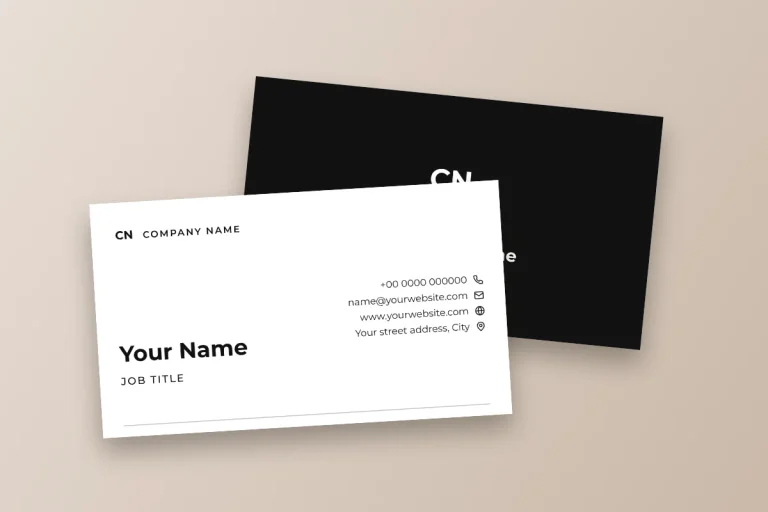
Business Card Template for Word (Free Download)
Download a free business card template for Word: a 10-up .docx for US Letter in the Avery 5371 layout, and an A4 version. Edit one card, copy it to the rest, and print.
This page offers two free business card templates for Microsoft Word, ready to download as .docx files: a US Letter sheet with 10 cards of 3.5 x 2 inches in the Avery 5371 layout, and an A4 sheet with 10 cards for India, the UK and other A4 countries. Open either file in Word, type your details into the first card, copy it into the other nine, and print.
Below you will find how to use the downloaded template, how to build one yourself in Word with Mailings > Labels, how to add a logo and background, and the print settings that keep the cards lined up. If you want edge-to-edge color or a QR code without the fiddly work, the templates on this page also open in our free business card maker, which exports a 10-up sheet PDF in the same layouts.
Which Word template should you download?
| Template | Paper | Cards per sheet | Card size | Use it with |
|---|---|---|---|---|
| Letter .docx (Avery 5371 layout) | US Letter, 8.5 x 11 in | 10 (2 across, 5 down) | 3.5 x 2 in | Avery 5371 and the products Avery lists as sharing its template (such as 8371, 8871, 5911, 28371), or plain card stock |
| A4 .docx | A4 | 10 | Business card size on A4 | Plain A4 card stock you cut yourself, or A4 card sheets whose layout matches (A4 layouts differ by product, so compare first) |
The Letter layout follows Avery's template data: a 0.5 inch top margin, 0.75 inch side margins, and no gaps between cards. If you are in India and buying sheets locally, check the sheet against the A4 file before printing a whole batch. For product-by-product details, see our Avery business card template guide.
How to use the free Word business card template
- Download the .docx for your paper (Letter or A4) and open it in Microsoft Word. If Word opens it in Protected View, click Enable Editing.
- Show the gridlines. The cards sit in a table. Click inside it, then on the Table Layout tab choose View Gridlines so you can see each card's edge on screen (gridlines do not print).
- Edit the first card. Replace the placeholder name, title, phone, email and address. Keep text at 8 pt or larger.
- Leave a margin inside each card. Keep text at least 0.125 inch from the card edge, because sheet perforations and home printers are not perfectly precise.
- Copy to the other cards. Select everything in the first cell, copy, and paste into each of the other nine cells.
- Save as your own file so you can reprint later without redoing the work.
- Print a test on plain paper, hold it against a card sheet up to the light, then print on the real sheets.
How to make business cards in Word from scratch (Mailings > Labels)
Word has a built-in label tool that creates the same 10-up grid. The menu names below are from Word for Windows; Word for Mac uses a similar Tools or Mailings > Labels path.
- Open a blank document and go to Mailings > Labels.
- Click Options. Under Label vendors choose Avery US Letter (or an A4 vendor list for A4 sheets).
- In Product number select 5371 (or 8371, which uses the same layout), and click Details to confirm the layout: top margin 0.5 in, side margins 0.75 in, card 2 x 3.5 in, 2 across and 5 down.
- Click OK, then New Document. Word creates a table with 10 cells, one per card.
- Design the first card, then copy it into the remaining cells as above.
Tip: if you type your text into the Address box in the Labels dialog and choose "Full page of the same label", Word fills all 10 cards at once. It is quick for text-only cards, but formatting is easier in the New Document method.
Adding a logo, background and QR code in Word
Logo
- Click inside the first card and choose Insert > Pictures.
- Set Wrap Text to "In Front of Text" or "Square" so you can position it freely, and resize it from a corner handle to keep proportions.
- Use a high-resolution PNG; Word will print a small logo blurry.
Background color or image
Insert a picture or shape the size of the card (3.5 x 2 in), set Wrap Text to "Behind Text", and align it to the cell. Word has no bleed, so a full-color background can leave a thin white edge or spill onto the next card if the printer feeds the sheet slightly off. Light or white backgrounds with a colored band away from the edges are much more forgiving. Our free visiting card backgrounds work well as a starting point.
QR code
Generate a QR code image elsewhere and insert it like a logo. Print it at least 0.8 x 0.8 inch (about 2 x 2 cm), with a blank margin around it, and scan a printed test. The maker on this site generates a contact-saving (vCard) QR code for you.
Print settings for Word business cards
- Paper size: make sure the document and the printer are both set to the same paper (Letter or A4). A mismatch makes the printer shrink or shift the page.
- Scaling: choose No Scaling or actual size. Options like "Scale to paper size" or "Fit to page" move every card.
- Paper type: select a heavy paper, card stock or labels setting so the printer feeds thick sheets slowly and fuses ink or toner properly.
- Feed: many inkjets prefer card sheets in the rear or manual feed tray. Check your printer's manual for the maximum paper weight.
- Test first: print one plain-paper copy and compare it with a card sheet before using the real thing.
For more on paper choice and feeding, see how to print business cards at home.
Double-sided cards in Word (duplex alignment)
- Add a second page to the document with the same table layout (copy the whole table and paste it on page 2).
- Put the back design in every cell of page 2.
- If each card is identical, the backs line up when you flip the sheet on its long edge, because the 5371 layout has equal 0.75 inch margins on both sides.
- If the cards differ (for example different names for different staff), remember that flipping on the long edge swaps the left and right columns, so mirror the order on the back page.
- Print page 1, reload the sheet as your printer's manual describes for manual duplex, then print page 2. Mark the top edge of a test sheet with a pen the first time so you know which way to reload.
Keep important back-side text well inside each card, since home printers can shift a little between the two passes.
Word vs other options
Word is good for quick, text-led visiting cards printed at home or in the office, especially when you need a visiting card in MS Word format that a colleague can edit. For designs with full-bleed color, photos or precise QR codes, a tool that supports bleed is easier: our maker, Canva, or professional software. If you mainly work in Google's tools, use our Google Docs business card template instead. For a full walkthrough of every method, read how to make a business card.
Frequently asked questions
Does Microsoft Word have a business card template?
Yes. Word can create a 10-up business card sheet through Mailings > Labels > Options by choosing an Avery product such as 5371, and you can also download ready-made templates. The free .docx files on this page are set up for US Letter in the Avery 5371 layout and for A4.
How do I make visiting cards in MS Word?
Open our A4 or Letter .docx template, or create one with Mailings > Labels > Options > Avery US Letter 5371 > New Document. Type your details in the first card, add your logo with Insert > Pictures, copy the card into all ten cells, then print a test on plain paper before using card stock.
How many business cards fit on one page in Word?
Ten business cards of 3.5 x 2 inches fit on a US Letter page in the Avery 5371 layout, two across and five down, with a 0.5 inch top margin and 0.75 inch side margins. A4 sheets also typically hold ten cards, but layouts differ by product.
Why are my Word business cards not lining up when printed?
The usual causes are printer scaling (set it to no scaling or actual size), a paper size mismatch between Letter and A4, or the sheet loaded at an angle. Print a test on plain paper, hold it against a card sheet to the light, and adjust before printing on card stock.
Can I print double-sided business cards in Word?
Yes. Put the front on page 1 and the back on page 2 using the same table. If all ten cards are identical, the backs align when you flip the sheet on the long edge. If they differ, mirror the left and right columns on the back page.
Sources
Related
- Avery Business Card TemplateAvery 5371, 8371, 8871 and many other Avery business card sheets share one template: ten 2 x 3.5 inch cards...
- Business Card Template for Google DocsBuild a 10-per-page business card template in Google Docs with a simple table and the right margins, or...
- How to Print Business Cards at HomePrint professional-looking business cards at home with a free 10-up sheet, the right printer settings and a...
 Blank Business Card TemplateA blank business card template gives you a ready layout with placeholder text that you replace with your own...