Visiting Card Background HD (Free Download)
Download free HD visiting card backgrounds: 48 designs in 12 styles, each in light and dark versions, sized 2100 x 1200 px for sharp printing on a standard 3.5 x 2 in card.
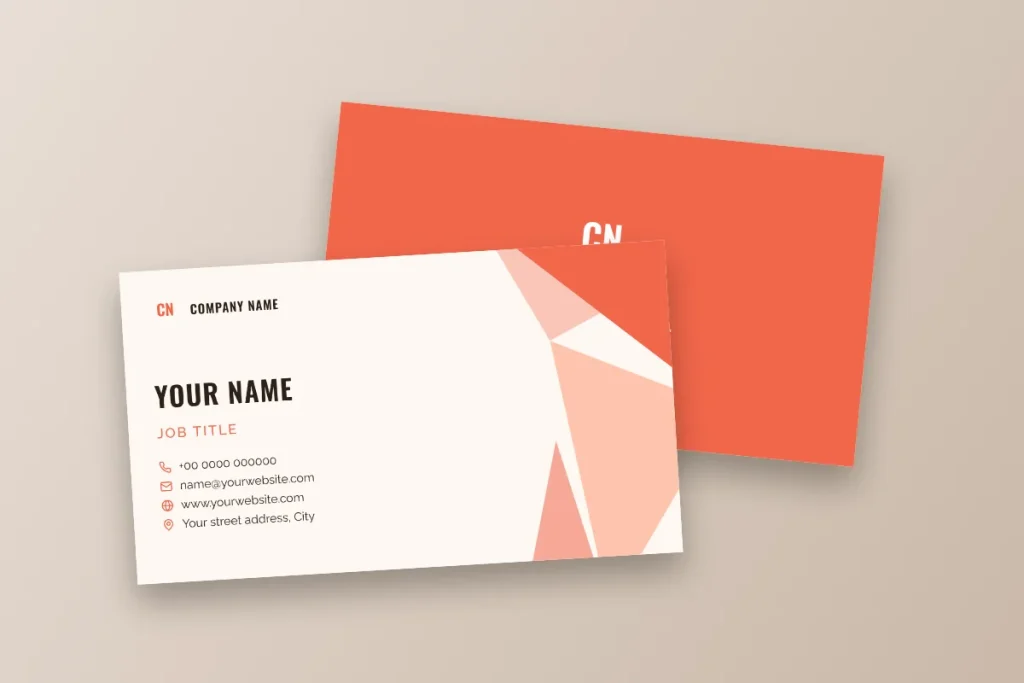
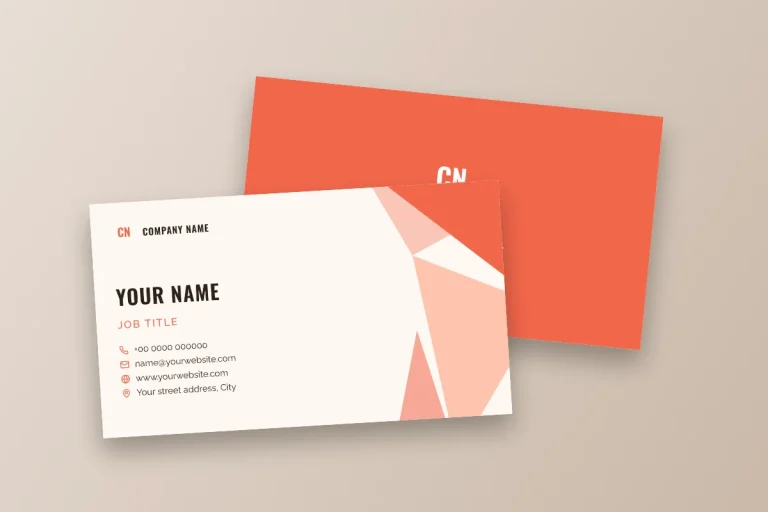
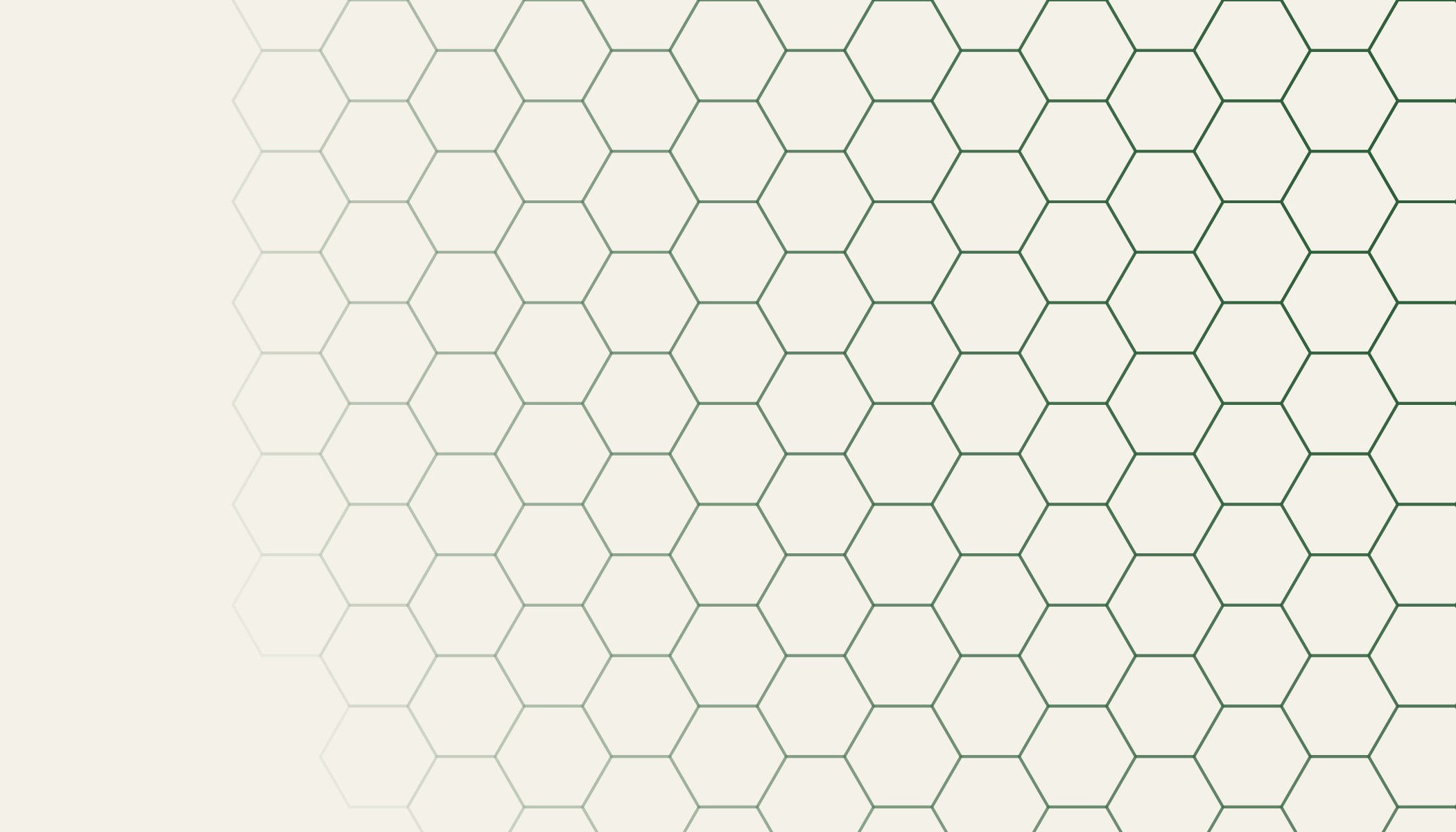
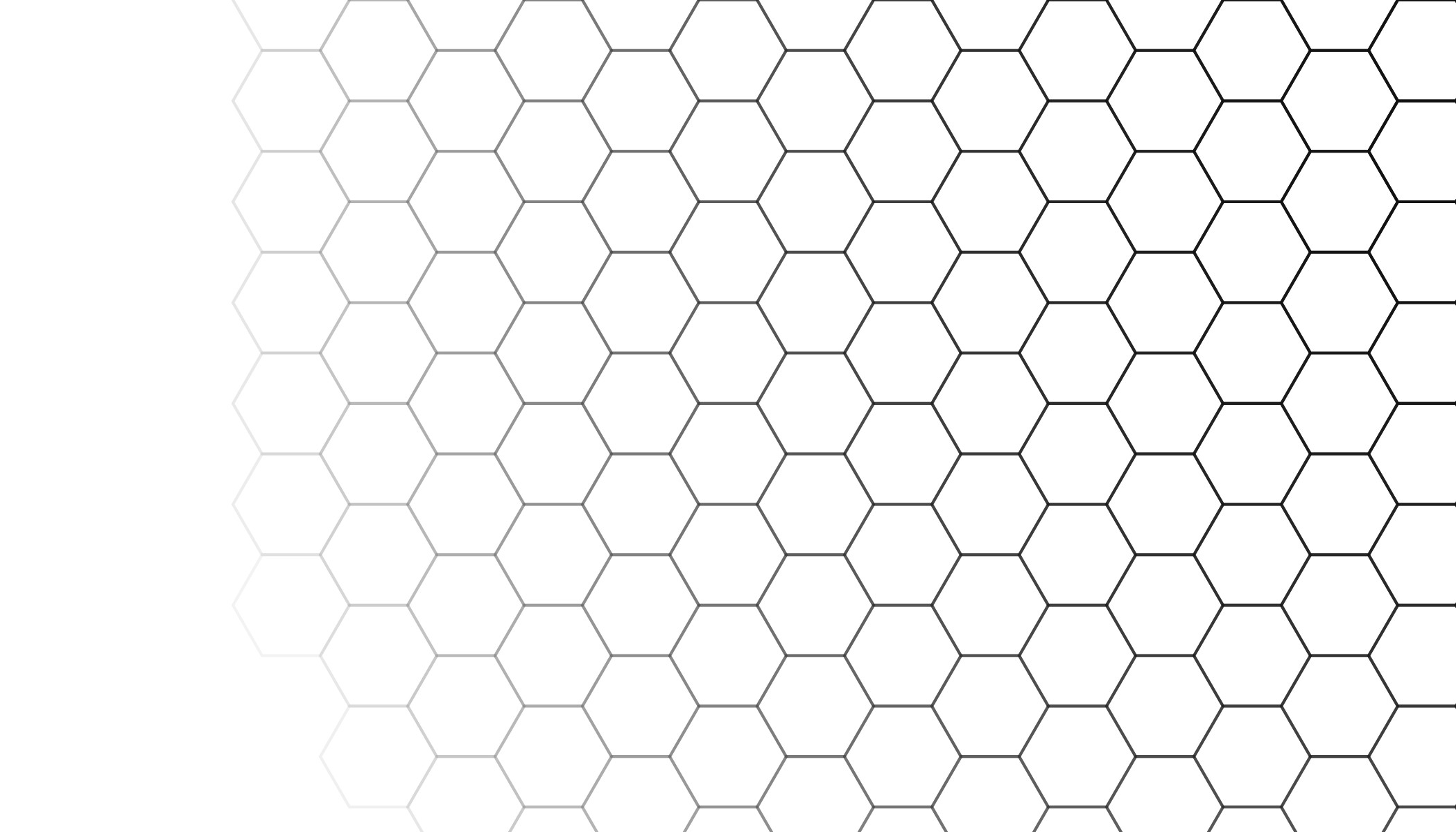
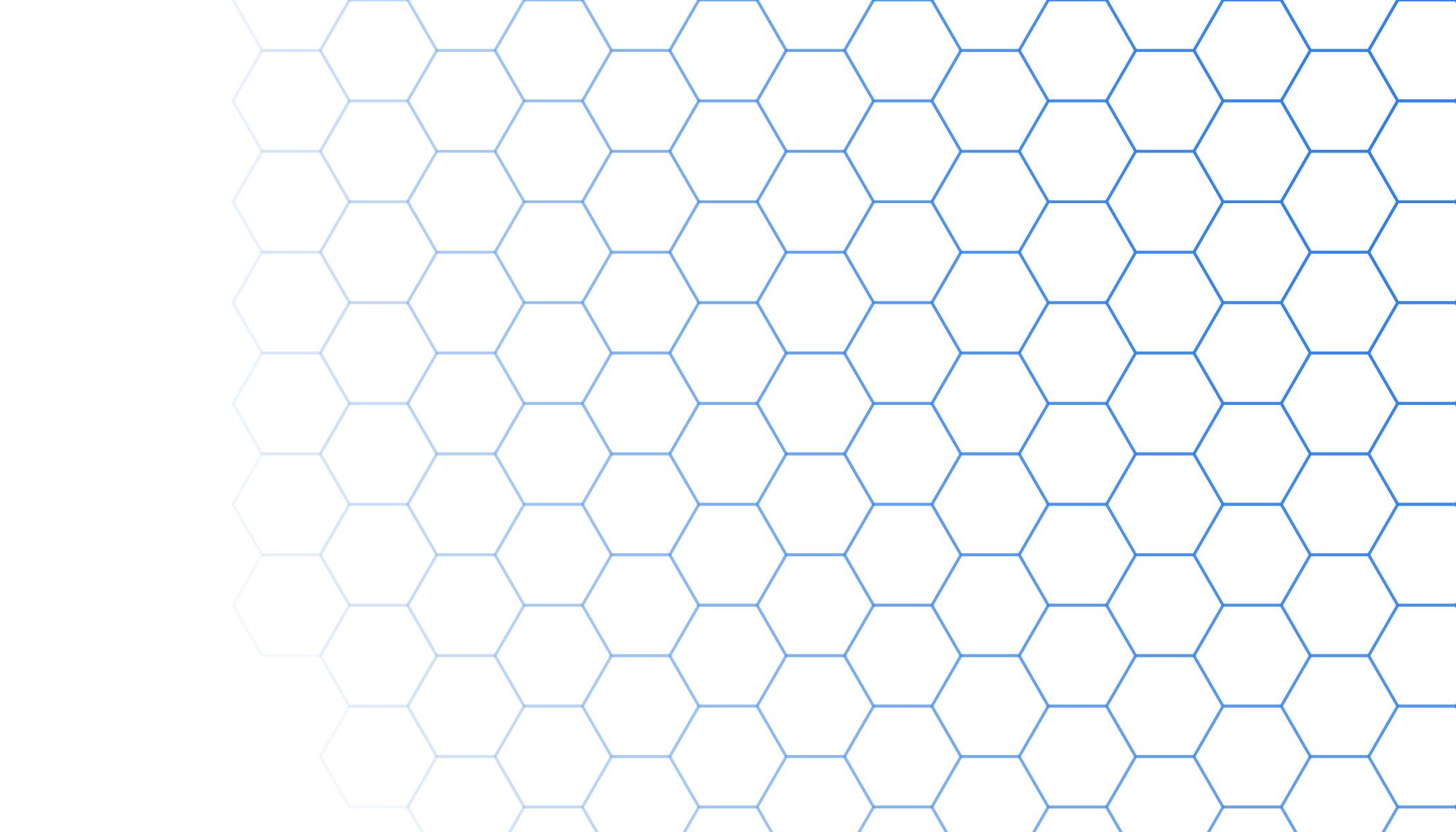
These 48 free visiting card backgrounds are HD JPG files at 2100 x 1200 px, which is twice the 300 DPI size of a 3.5 x 2 in card (1050 x 600 px), so they stay sharp when printed. They come in 12 styles: waves, glow, diagonal stripes, rings, hexagon, low-poly, halftone dots, swoosh, corner triangles, marble lines, two-tone and topographic, each with light and dark variants. Every background is a blank visiting card background with no text, free to use for personal and commercial card printing.
Download a file to use in Canva, Photoshop, CorelDRAW or Word, or choose "use in maker" to open it directly in the free business card maker and add your details.
48 free HD backgrounds








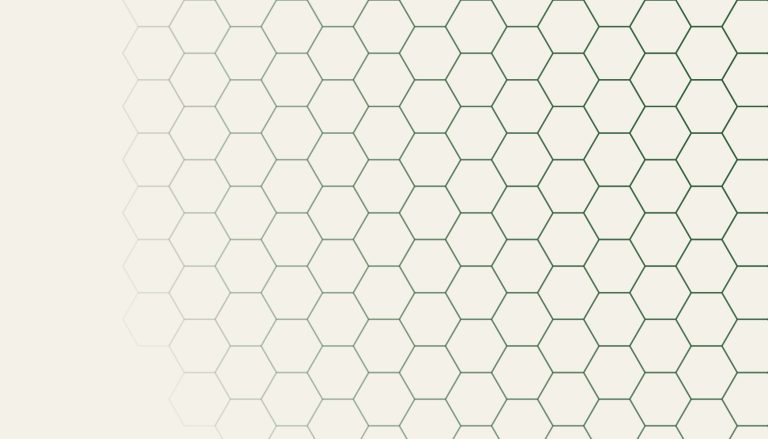
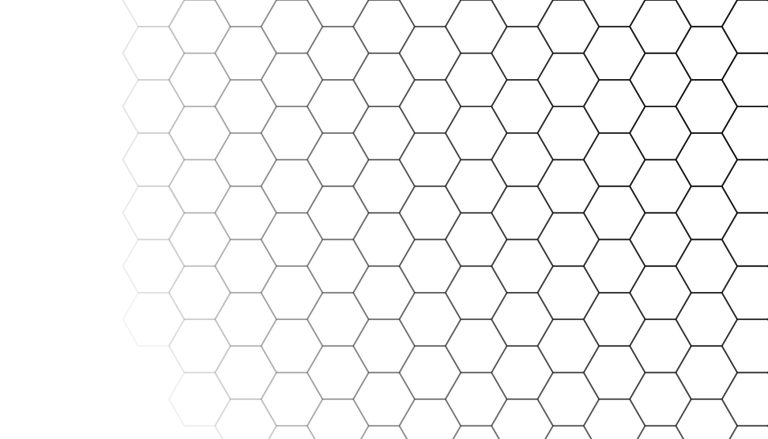

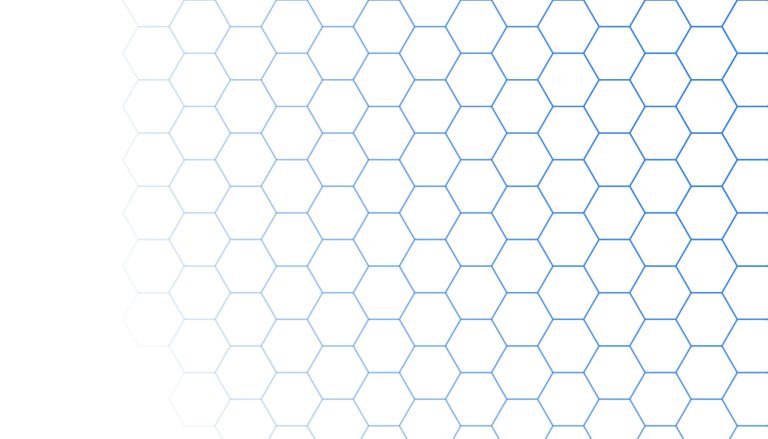



































The 12 business card background styles
| Style | Feel | Suits |
|---|---|---|
| Waves | Flowing, friendly | Travel, wellness, water and cleaning services |
| Glow | Soft gradient light | Beauty, tech, events |
| Diagonal stripes | Energetic, bold | Transport, construction, sports |
| Rings | Modern, rhythmic | Agencies, music, DJs |
| Hexagon | Technical, structured | IT, engineering, science |
| Low-poly | Faceted, digital | Startups, digital marketing |
| Halftone dots | Print-inspired, playful | Printing, retail, food |
| Swoosh | Dynamic, corporate | Sales, insurance, consulting |
| Corner triangles | Clean geometric frame | Corporate, education |
| Marble lines | Elegant, natural | Jewellery, interiors, salons |
| Two-tone | Simple split colour | Any profession |
| Topographic | Map contours, outdoorsy | Real estate, agriculture, travel |
Dark variants suit premium and nightlife brands; light variants leave more room for readable text. For marble and gold looks, see our elegant business card templates.
How to use a visiting card background
In the free maker
Click "use in maker" under any background. It opens as the card background; add your name, details and logo, then download a PNG, a print-ready PDF with 0.125 in bleed, or a 10-up print sheet.
In Canva
- Create a design at your card size (for example 3.5 x 2 in).
- Upload the JPG and drag it onto the page, then stretch it to fill the whole card including the edges.
- Add text boxes on top. Enable Canva's bleed and margin view if you will print professionally.
In Photoshop
- Make a new document at 3.75 x 2.25 in, 300 DPI (the 3.5 x 2 in card plus 0.125 in bleed on every side).
- Place the background and scale it to cover the full canvas.
- Add guides 0.125 in in from the trim for the safe zone, then add text layers.
In CorelDRAW
- Set the page to your card size and turn on bleed in the page layout settings.
- Import the JPG, size it to reach the bleed edge, and lock it.
- Type your details on a layer above it.
In Word
- Open the free 10-up Word template or a card-size page.
- Insert the picture, set text wrapping to "Behind Text", and size it to fill the card.
- Type over it and print at actual size.
Card sizes vary by country, so check the visiting card size guide first. In India, 3.5 x 2 inches is most common and some printers use 91 x 55 mm. Our backgrounds are shaped for 3.5 x 2 in; for other sizes, crop slightly when you place them.
Text contrast and the safe zone
- Contrast first. Use dark text on light variants and white or light text on dark variants. If a pattern runs behind your details, place text on its calmest area or add a solid panel.
- Keep text 0.125 in inside the trim on a 3.5 x 2 in card, leaving a 3.25 x 1.75 in area. Patterns can run to the edge; text should not.
- Extend the background into the bleed so no white edge shows after cutting.
- Keep text at 8 pt or larger, as MOO recommends; busy backgrounds make small text harder to read.
- Expect slight colour shifts. The JPGs are RGB; printers convert to CMYK, so very bright colours may print a little duller. Our visiting card colour combinations guide helps you pick text colours.
Licence: what you can do with these backgrounds
The backgrounds are free to use for personal and commercial card printing: cards for yourself, your business or your clients. Read the site licence for the full terms, including what is allowed if you want to share or redistribute the image files themselves.
Frequently asked questions
What size is a visiting card background in HD?
Our backgrounds are 2100 x 1200 px JPG files. A 3.5 x 2 in card at 300 DPI is 1050 x 600 px, so these are twice that size and stay sharp in print. With 0.125 in bleed, the full file area is 1125 x 675 px at 300 DPI, which the background still covers comfortably.
Can I use these backgrounds for commercial printing?
Yes. The backgrounds are free for personal and commercial card printing, so you can use them on cards for yourself, your business or your clients. If you want to share or redistribute the image files themselves rather than printed cards, read the licence page on this site first for the full terms.
How do I put a background on a visiting card in Word?
Insert the JPG into the card area, set its text wrapping to Behind Text, and stretch it to fill the card. Then type your details on top. If you use our 10-up Word template, repeat for each card and print at actual size with no scaling so everything lines up.
Which background colour is best for a visiting card?
Light backgrounds with dark text are the easiest to read and suit most professions. Dark backgrounds with white or gold text feel premium and stand out. Choose the variant that gives strong contrast with your text, and keep busy patterns away from small contact details.
Can I use a background with a vertical card?
Yes. Rotate the background or use it on a vertical layout in the maker. Patterns such as waves, rings, hexagon, halftone and topographic work in either orientation. Check that the most detailed part of the pattern does not sit behind your text after rotating.
Sources
Templates to try
- Free Business Card MakerDesign a business card or visiting card in minutes: choose a template, type your details, add a logo and...
 Creative Visiting Card Design TemplatesA creative visiting card design uses bold colour, unusual layouts and graphic shapes so people remember you....
- Visiting Card Colour Combinations That WorkFifteen visiting card colour combinations used in our templates, with hex codes you can copy, plus which...
- Visiting Card Size in Inches, cm, mm and PixelsIn India, the most common visiting card size is 3.5 x 2 inches (8.9 x 5.1 cm, 1050 x 600 pixels at 300 DPI)....