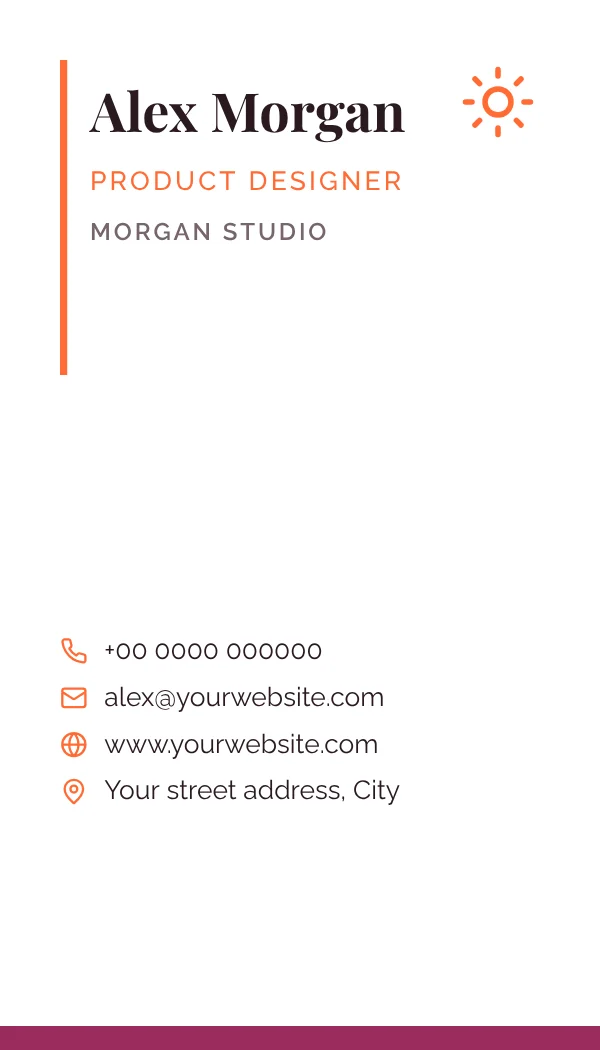
QR Code Business Card Templates
A QR code business card lets people scan the back of your card and save your name, phone and email straight to their contacts. These 12 free templates generate a vCard QR automatically.
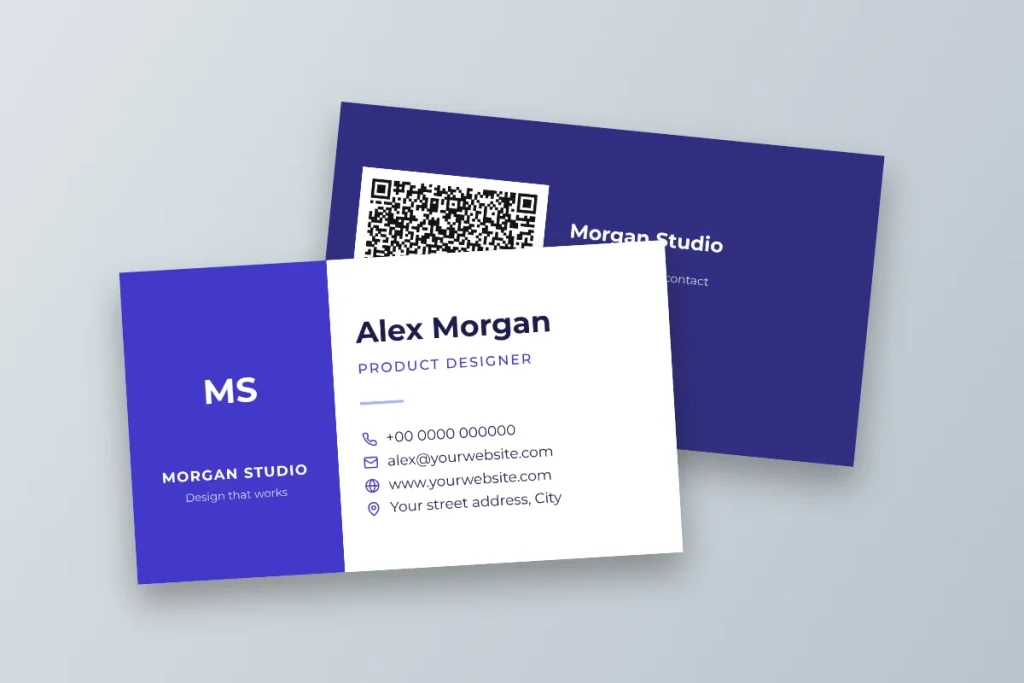
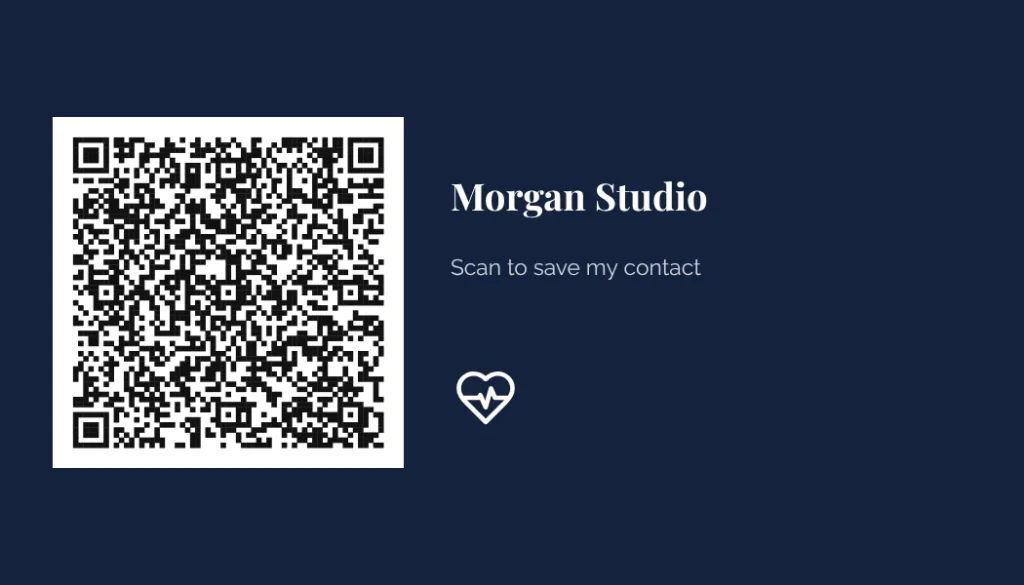
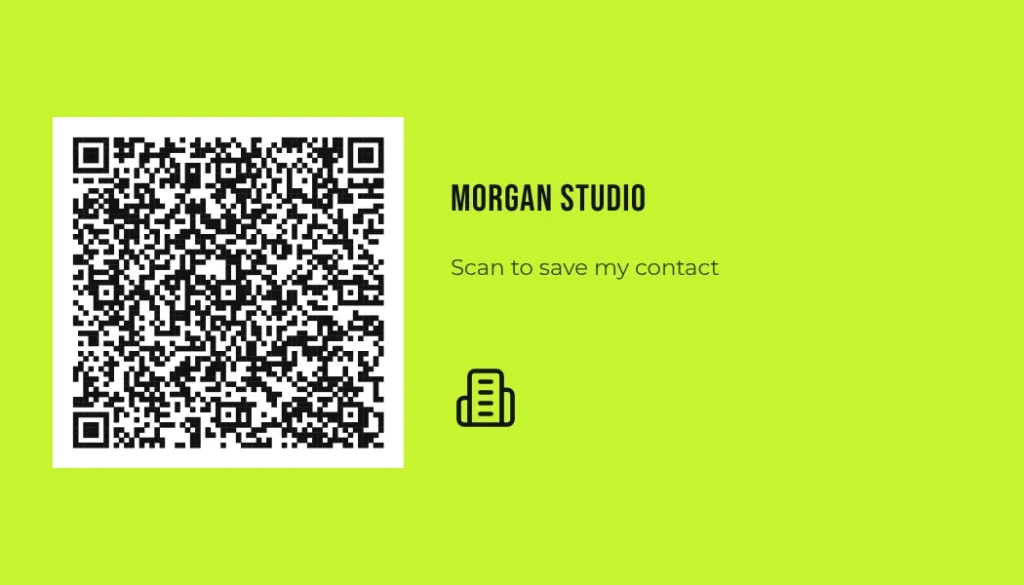
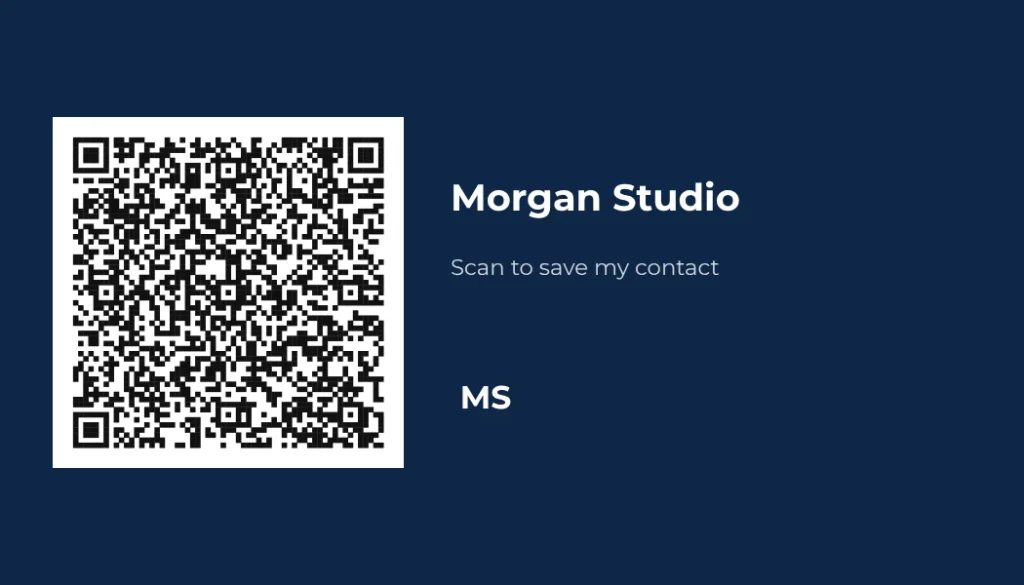
A QR code business card carries a printed code, usually on the back, that a phone camera can scan to save your contact details, open your website or start a WhatsApp chat. In the free maker, the back-side QR on these 12 templates encodes a vCard automatically from the details you type, so a scan brings up a "save contact" prompt on most phones. Replace the placeholder details, check the code, and download a print-ready PDF or PNG.
A QR visiting card is useful for anyone who meets people in person and wants to avoid typos when a contact is entered by hand.
12 free qr code business card templates
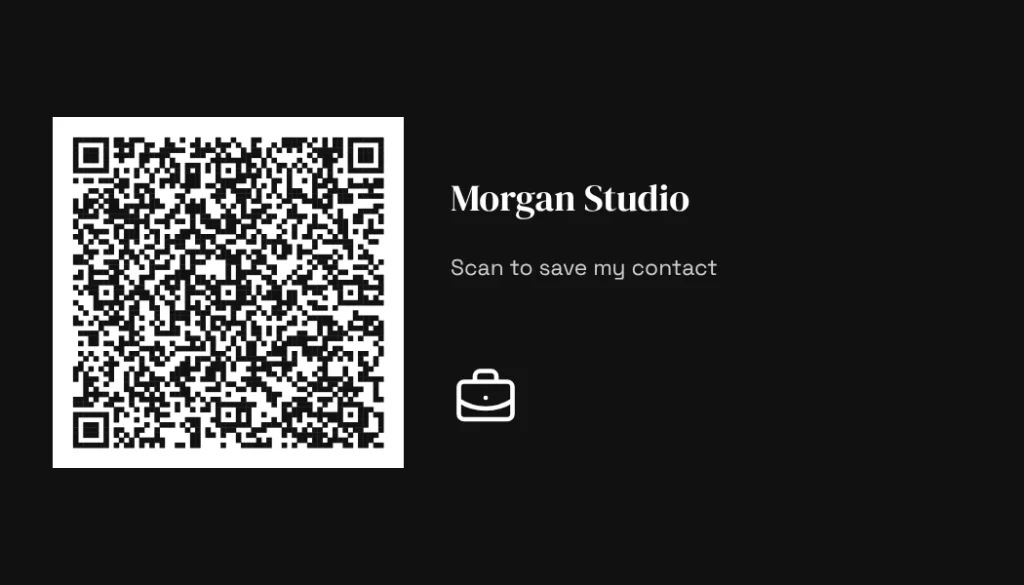
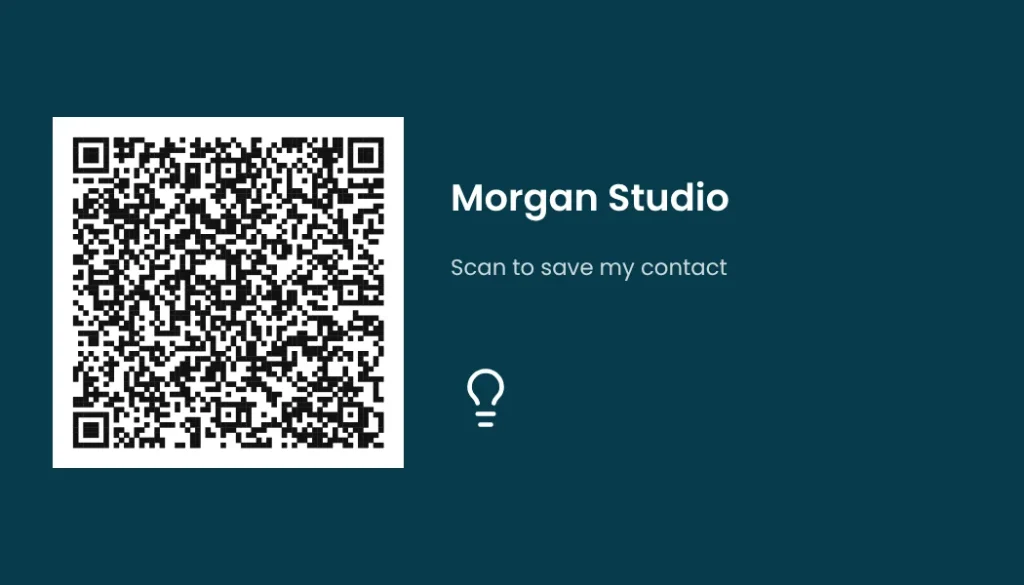
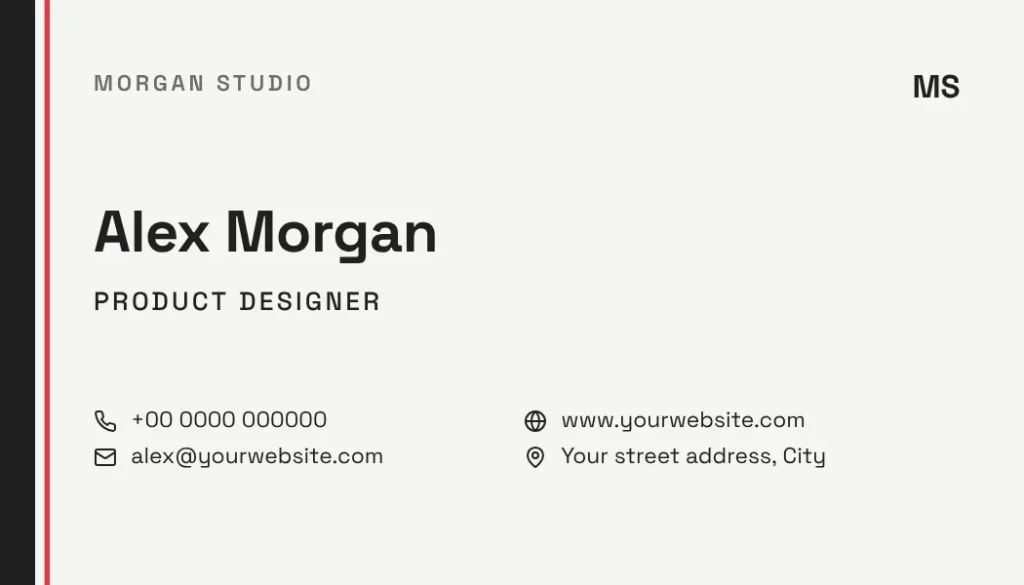
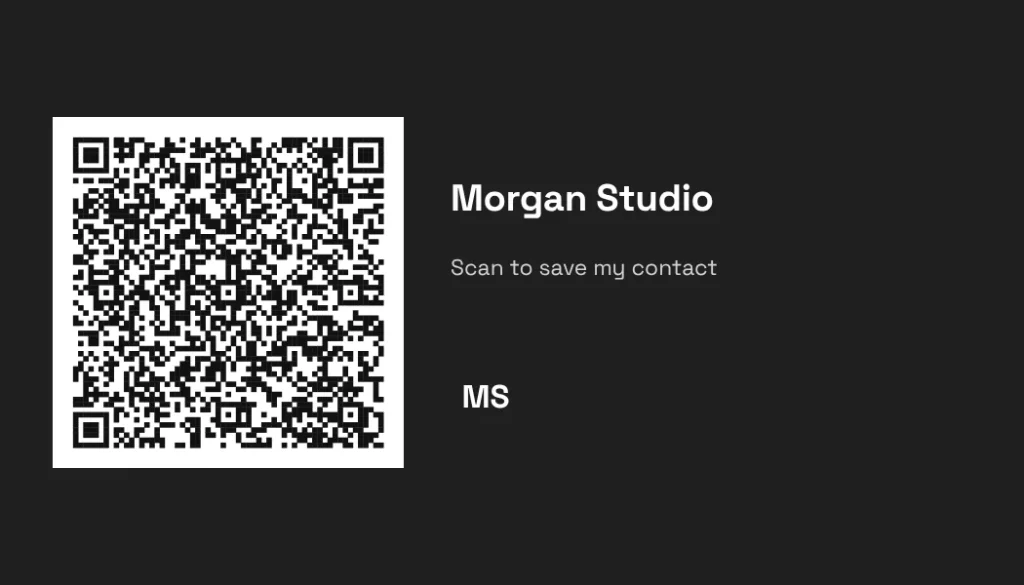
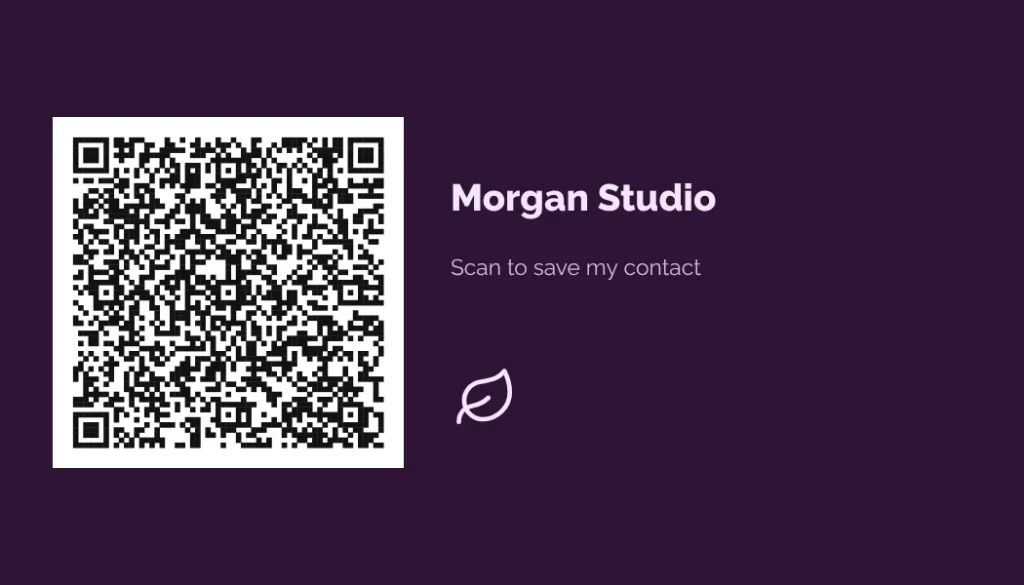
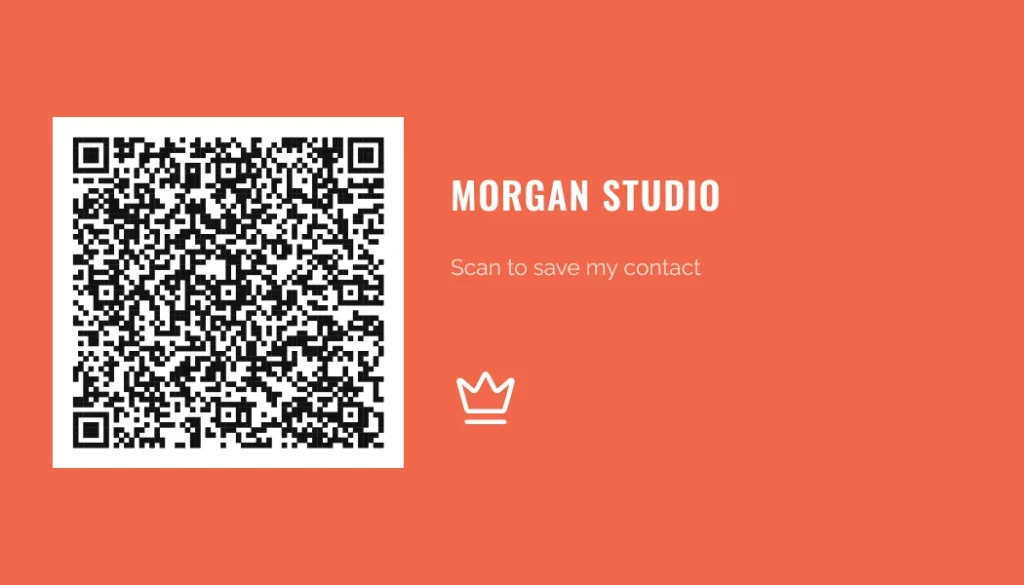
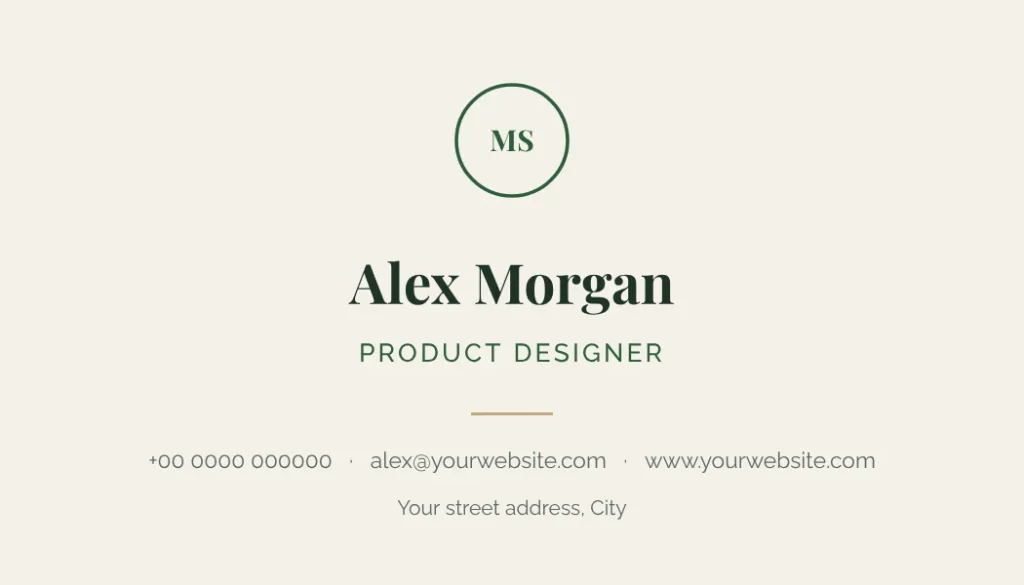
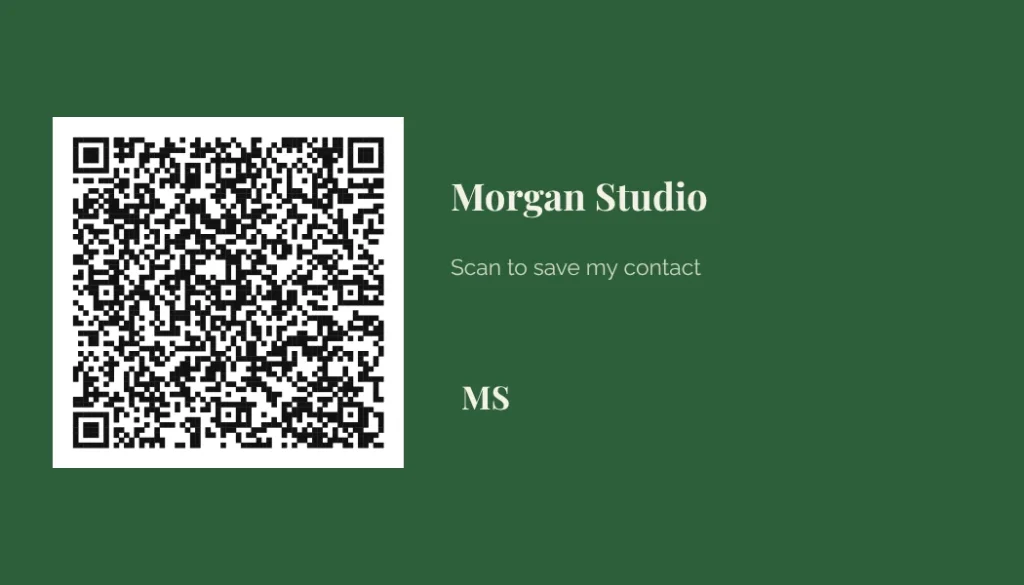
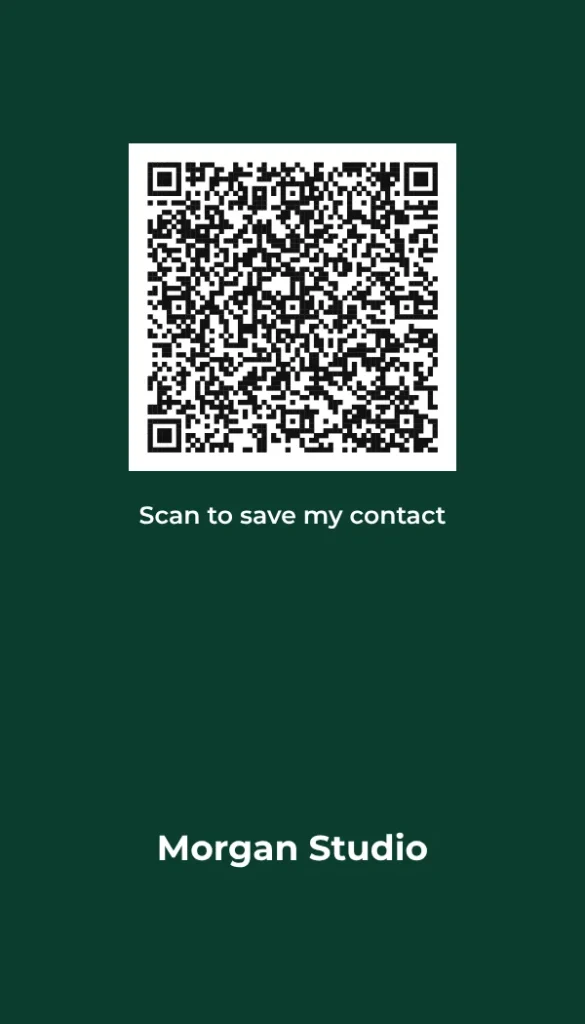
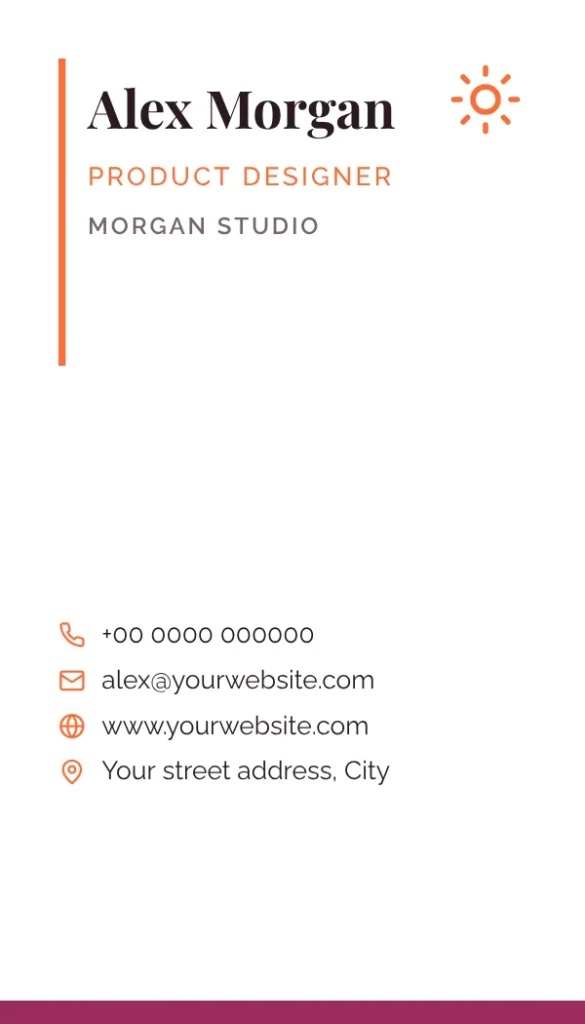
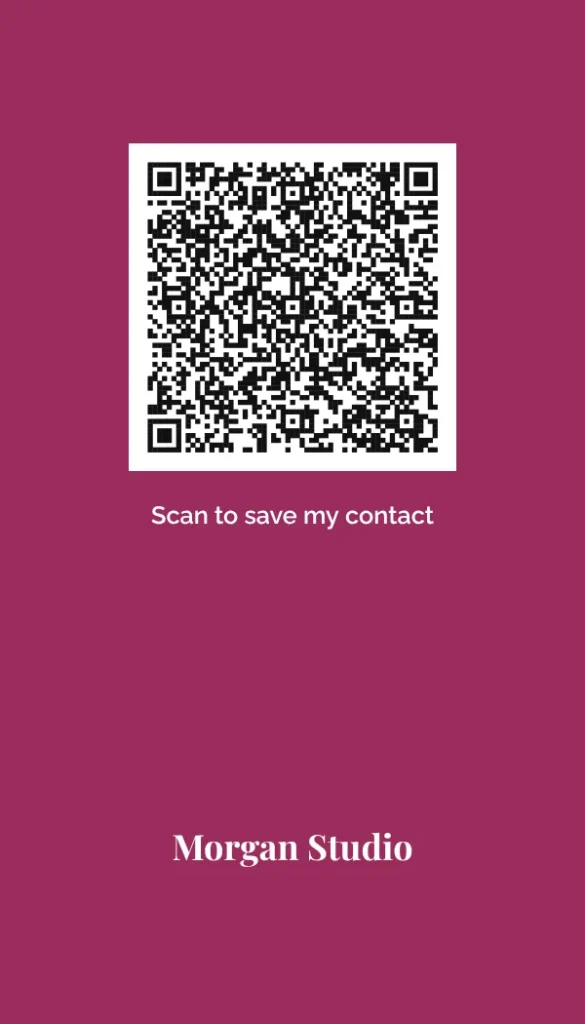
Hover or tap a card to see the back. Customize to edit and download.






What to encode in a business card QR code
A QR code can hold different kinds of data. The most useful options for a card:
- vCard (contact card): name, organisation, title, phones, email, website and address in one scan. This is what the maker creates. vCard 4.0 is defined in RFC 6350 and vCard 3.0 in RFC 2426; most phones read either as a contact.
- Website URL: a portfolio, booking page or menu.
- WhatsApp or phone link: handy for shops and service businesses in India.
- Map location: for clinics, stores and offices.
A vCard is usually the best default because it works offline and saves everything at once. Keep it short: every extra field makes the code denser, and dense codes need to be printed larger. Learn more about going paperless in our digital visiting card guide.
QR code size and quiet zone
Print the QR code at least 0.8 x 0.8 in (about 2 x 2 cm), and leave a quiet zone (blank margin) of at least 4 modules around it. A module is one of the small squares that make up the code. These figures come from Vistaprint's guidance and the QR standard as summarised by Keyence.
- Bigger is safer when the vCard holds many fields, since the modules get smaller as data increases.
- Keep the quiet zone clear of text, borders, patterns and the card edge.
- Stay inside the safe zone: on a 3.5 x 2 in card that means 0.125 in inside the trim.
- Use strong contrast: dark modules on a light background scan most reliably. Light-on-dark or low-contrast colour codes may fail on some phones.
Designing a business card with a QR code
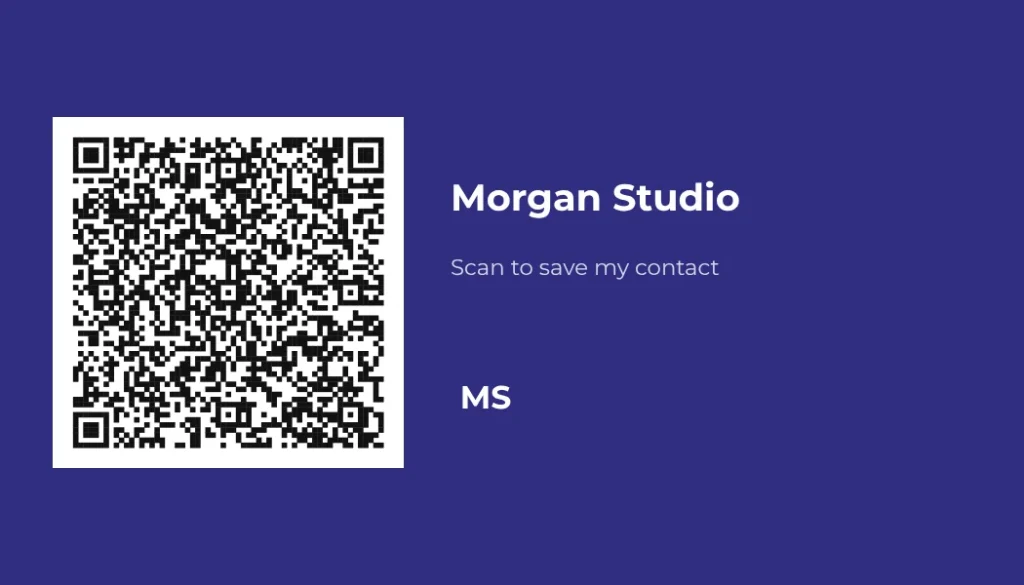
- Back side for the code: a clean back with the QR, a short prompt such as "Scan to save my contact" and your logo keeps the front uncluttered.
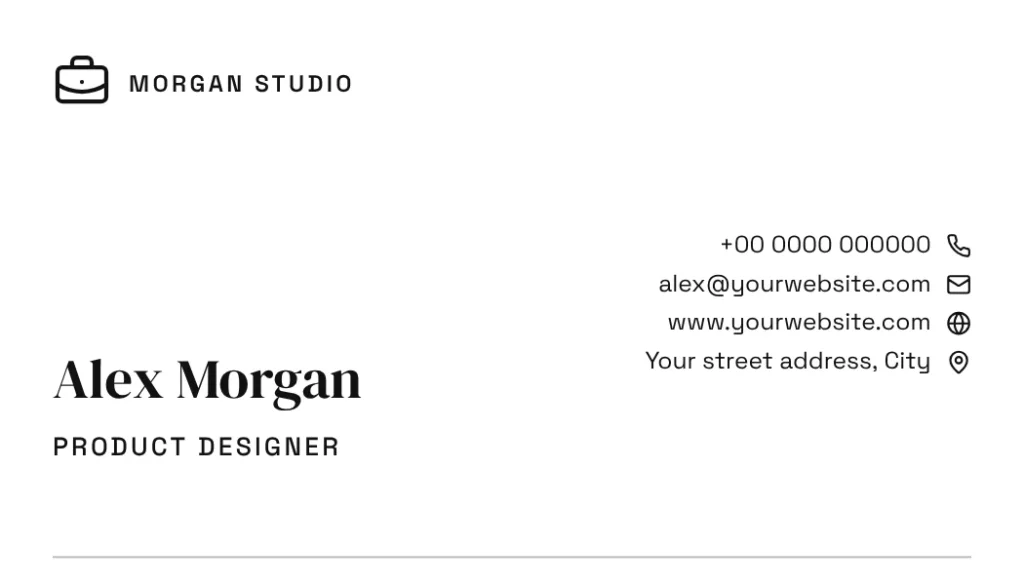
- Keep printed details too. Not everyone will scan, so the front should still show your name, phone and email.
- Avoid placing the QR over a background image. If your design uses a pattern or one of our visiting card backgrounds, put the code on a white panel.
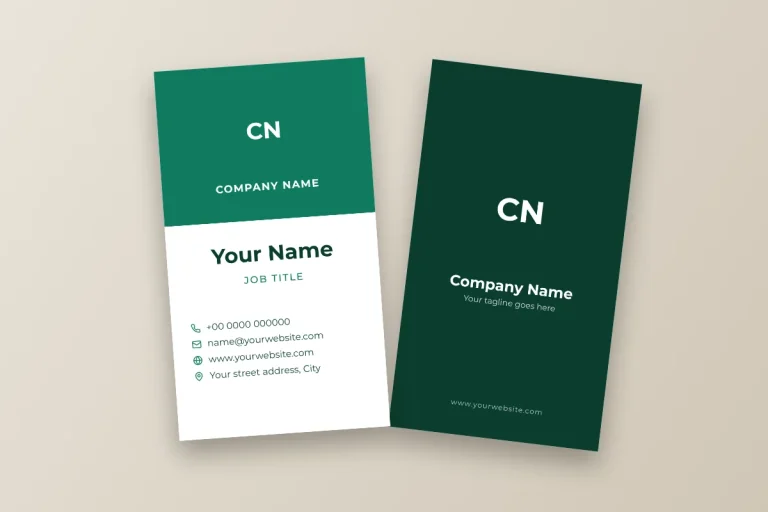
- Vertical layouts suit QR cards well; see vertical business card templates.
The minimalist business card style also pairs naturally with a QR back, since both rely on clean space.
Test the QR code before printing
- Download a PNG or PDF from the maker and open it on a screen at roughly actual size.
- Scan it with at least two different phones (for example one Android and one iPhone) using the built-in camera app.
- Check every field in the save-contact prompt: spelling of name, country code on phone numbers, email and website.
- Print one test page on plain paper at 100% scale and scan the printed code from normal hand distance.
- Only then order your print run. If you later change a phone number or email, regenerate the code and test again.
A vCard QR is static: the data is in the code itself, so it cannot be edited after printing. That also means it never expires and needs no third-party service.
Mistakes to avoid
- Printing the code smaller than 0.8 in, or cropping its quiet zone.
- Putting the QR too close to the trim, where a small cutting shift can damage it.
- Stylising the code with heavy colours, gradients or a large logo in the middle without testing.
- Encoding a short link from a service that may stop working, when a vCard would do.
- Leaving out the country code on phone numbers, which can confuse international contacts.
Frequently asked questions
How do I add a QR code to my visiting card?
Choose a QR template on this page and open it in the free maker. Enter your details and the back-side QR is generated automatically as a vCard, so scanning it offers to save your contact. Download a PDF or PNG, test the code with two phones, then print.
What size should a QR code be on a business card?
Print it at least 0.8 x 0.8 in (about 2 x 2 cm) with a blank quiet zone of at least 4 modules around it. If your vCard contains many fields the code becomes denser, so print it larger. Keep it inside the safe zone, away from the trimmed edge.
What is a vCard QR code?
It is a QR code that contains contact information in the vCard format, the standard used by phones and email apps. vCard 4.0 is defined in RFC 6350 and vCard 3.0 in RFC 2426. When scanned, most phones show a prompt to save the name, phone number, email and other details as a new contact.
Does a business card QR code expire?
A vCard QR code made in our maker does not expire, because the contact details are stored in the code itself rather than on a server. The downside is that it cannot be updated after printing. Codes that point to short links or paid services can stop working if that service ends.
Can a QR code be coloured on a visiting card?
Yes, but keep strong contrast: dark modules on a light background are the most reliable. Avoid light codes on dark backgrounds, gradients and busy images behind the code. Whatever colours you use, test the printed code with more than one phone before ordering a full print run.
Sources
More templates
- Digital Visiting CardA digital visiting card shares your contact details on a phone instead of (or as well as) on paper. Here is...
 Vertical Business Card TemplatesA vertical business card is the standard card turned on its side: 2 x 3.5 in instead of 3.5 x 2 in. It stands...
- What to Put on a Business CardPut your name, job title, company, phone number, email and website on a business card. Add a logo, address,...
- Free Business Card MakerDesign a business card or visiting card in minutes: choose a template, type your details, add a logo and...